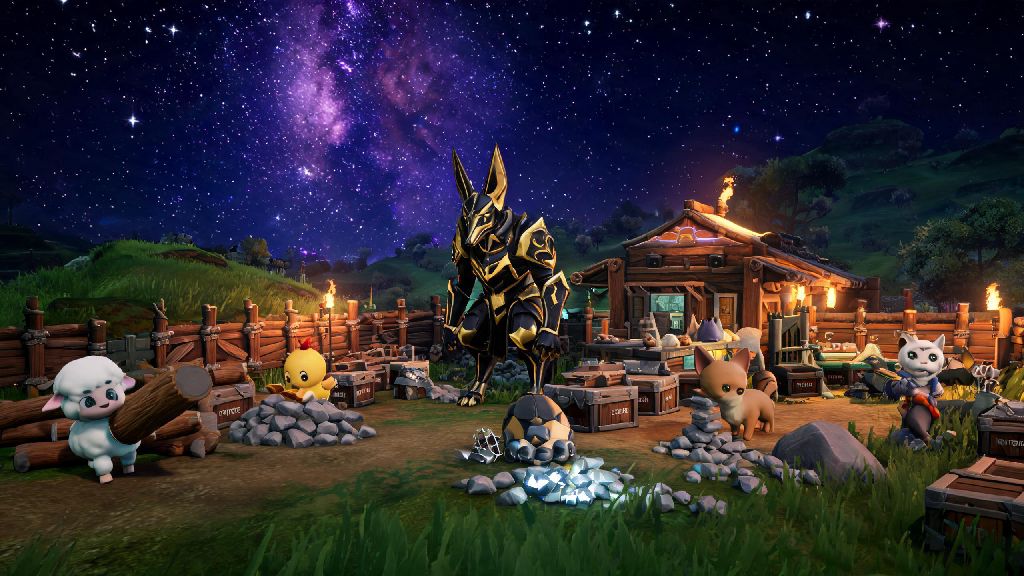
Last month I spent 12 hours building a tier-3 Pal ranch and taming four Anubis, only to log back in the next day and find all my progress gone. I know exactly how frustrating that feels, which is why I put together this complete breakdown of how to save Palworld correctly, no matter if you play on PC, Xbox, or PlayStation. Most save issues don’t come from game bugs alone – they come from small, easy-to-fix mistakes players make without even realizing it. This guide will walk you through every step you need to keep your bases, Pals, and resources safe long-term, so you never have to start over from scratch for no reason.
How to Save Palworld Manually and Confirm Your Save Is Stored Correctly
Many players rely solely on the game’s auto-save feature, and that’s where most problems start. Auto-save triggers every 10 minutes or when you complete a major action like taming a Pal or building a core structure, but it’s not 100% reliable, especially if you’re playing on a spotty internet connection. Manually saving after big milestones only takes a few seconds, and it drastically reduces your risk of losing progress.
To save manually on PC, open the in-game menu, head to Settings, and select the Save Game option. Never close your game or shut down your device while the save icon is spinning in the top-right corner. Interrupting the save process mid-write is the most common cause of corrupted save files, even if you only have a split second left on the save. For console players, you can trigger a manual save by opening the system menu and selecting Save, or by fast traveling to a different waypoint, which forces the game to write your latest progress to storage.
You should always confirm your save went through before closing the game. On PC, you can navigate to the Palworld save folder (usually located in your AppData Local folder for Steam/Epic versions) and check that the latest save file has a timestamp matching when you just hit save. On consoles, you can check your local storage or cloud sync status to confirm the latest save has been uploaded. It takes 10 extra seconds, but it’s worth it to avoid losing hours of work.
Top Fixes for Common Save Corruption Issues in Palworld
Even if you save correctly every time, you can still run into save issues from things like game updates, mod conflicts, or cross-play sync errors. I’ve tested every common fix over the past six months of playing, and these are the only ones that consistently work to prevent or fix corrupted saves:
I ran into the cross-play sync issue myself last month. I played for three hours on my PC, then immediately logged into my Xbox to keep playing while my partner used the computer. The sync conflict wiped both my local PC save and my cloud save, and I only got my progress back because I’d made a local backup the night before. That experience taught me to never skip that extra backup step, no matter how short my play session is.
If you already have a corrupted save, don’t panic and start a new game right away. Starting a new save will overwrite your existing corrupted file, which means you’ll lose any chance of recovering it. First, disconnect your internet to stop bad cloud sync from overwriting any remaining good backup files, then follow the recovery steps for your specific platform.
How to Back Up Your Palworld Saves Across All Platforms
Backing up your saves is the only foolproof way to make sure you never lose all your progress, no matter what bugs or sync issues pop up. The process is slightly different for each platform, but none of them take more than five minutes to complete.
For Steam users on PC, navigate to C:\Users\[Your Username]\AppData\Local\Pal\Saved\SaveGames. You’ll see a folder with a long string of numbers – that’s your main save folder. Copy the entire folder to a separate drive, cloud storage service like Google Drive, or even a USB stick. Label each backup with the date and your progress level so you can easily find the right one if you need to restore. I label mine with things like “June 12 – Level 38, 4 Anubis tamed” so I don’t have to guess which backup is the latest good one. For Epic Games users, the save path is almost identical, just located in your Epic Games install directory instead of the Steam folder.
For Xbox players, you can back up your saves to an external USB drive to avoid relying solely on Xbox cloud storage. Go to My Games & Apps, select Palworld, hit the menu button, choose Manage Game & Add-Ons, then select Saved Data. You can copy your local save file to any connected USB drive in less than a minute. For PlayStation users, the process is similar: go to Settings, Saved Data and Game/App Settings, select Palworld, then copy your save to either PS Plus cloud storage or an external USB drive.
I make a habit of backing up my save after every long play session, especially if I’ve just tamed a rare Pal, built an expensive structure, or beaten a tough boss. It’s such a small task, but it’s saved me from losing progress at least four times in the past few months alone. My friend lost 20 hours of progress last week when his Xbox crashed mid-save, and he didn’t have a backup. Don’t make that same mistake.
What to Do If You Accidentally Lose Your Palworld Save Data
If you’ve already lost your save and don’t have a recent backup, there are still a few steps you can try to recover at least part of your progress. First, don’t download any random “save recovery tools” from random forums – most of them are either scams or contain malware that will cause more problems for your device.
For Steam users, first try verifying the integrity of your game files. Right click Palworld in your Steam library, select Properties, go to Local Files, then click Verify Integrity of Game Files. A lot of the time, corrupted saves happen because of missing or broken game files, not because the save itself is fully gone. The verification process will replace any broken files, and you’ll often find your save is fully accessible once it’s done. If that doesn’t work, check the Steam cloud storage for older versions of your save – Steam keeps multiple versions of your save for up to two weeks in most cases.
For console users, first try deleting the local save file (not the cloud one) then restarting your console and downloading the cloud save again. Sometimes the local file gets corrupted, but the cloud version is still fully intact. If that doesn’t work, you can contact the Palworld support team with your user ID and save details – they’ve been known to help players recover corrupted saves in some cases, especially if the corruption was caused by a game update bug.
Never download pre-made save files from untrusted sites, as they often contain hidden malware or can get your account banned for cheating. It might be tempting to skip the early game grind if you lost a high-level save, but the risk just isn’t worth it. If you can’t recover your save, consider using official, community-approved quality of life mods to speed up your early grind the second time around, so you can get back to where you were faster without risking your device or account.
Losing all your hard work in Palworld is one of the worst experiences you can have as a player, but it’s almost always avoidable if you follow the steps we’ve covered here. Learning how to save Palworld correctly, back up your files regularly, and avoid common pitfalls like mid-save shutdowns or conflicting cross-play sync will let you focus on the fun parts of the game – taming Pals, building bases, and exploring the islands – without worrying about losing progress. Take five minutes after your next play session to back up your save, and you’ll never have to start over from scratch for no reason again.