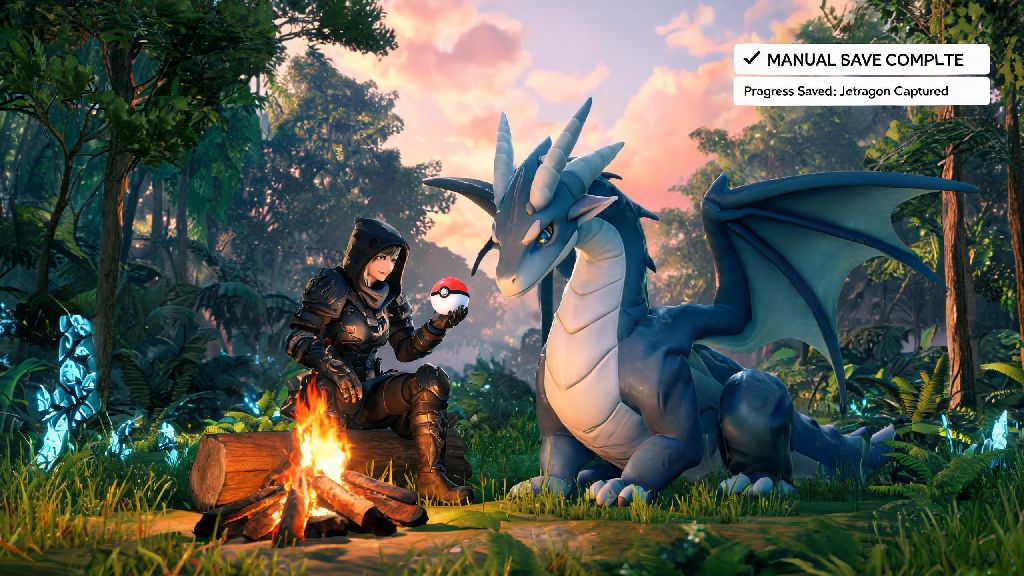
If you’ve ever spent three hours tracking down a rare Jetragon, only to have your game crash right after you catch it, you know how gut-wrenching lost progress in Palworld can be. Most new players assume the game’s auto-save feature will cover them, but it only triggers at specific, infrequent points that don’t always line up with your biggest wins. Learning how to save in Palworld properly isn’t just a tiny quality of life tip – it’s the only way to make sure you don’t waste dozens of hours of work on corrupted or missing files. I’ve lost two full playthroughs to avoidable save mistakes early on, so I put together all the tips I wish I’d known when I first started playing.
How to Save in Palworld Manually (and When You Always Should Do It)
Manual saving is far more reliable than auto-save, and it only takes a couple of seconds to do. To save manually, all you have to do is open your in-game menu (press Esc on PC, Menu on Xbox, or + on Switch), then select the “Save Game” option from the list. You’ll see a small floppy disk icon pop up in the top right corner of your screen, and you’ll need to wait until that icon disappears completely before you exit the menu or close the game. Never close the game while the save icon is spinning in the top right corner, as this is the most common cause of corrupted save files across all platforms.
You don’t have to save every two minutes, but there are specific moments where a manual save is non-negotiable. You should always save right after catching a rare or high-IV Pal, after completing a big base build or resource run, before you take on a tower boss or Alpha Pal fight, and right before you close the game for the day. Auto-save will trigger after you fast travel, level up, or catch a Pal, but it won’t save after you spend an hour arranging your storage chests or breeding a perfect set of work Pals. I learned this the hard way when I spent 90 minutes setting up an automated ore farm, only to have my game crash before the next auto-save ran.
Fix Common Save Issues That Erase Your Palworld Progress
Even if you save manually all the time, you might run into issues like save files not loading, cloud sync errors, or corrupted save warnings. Most of these issues are easy to fix if you know what to do, and you don’t have to start a new playthrough immediately when you run into them. The first thing you should check if you’re having save issues is your platform’s cloud save setting. Enable cloud save in your platform settings if it’s not already turned on, because it will keep a backup of your save even if your local file gets corrupted.
If you get a warning that your save is corrupted or failed to load, don’t immediately overwrite it with a new save. Try these quick fixes first to see if you can recover your progress:
For PC players, you have an extra layer of protection that console players don’t. Make occasional manual backups of your local save files and store them in a separate folder on your computer or a cloud drive. You can find your local Palworld save files in the AppData folder for Steam users, or in the Xbox Games folder for Game Pass PC users. Backing up your files once a week only takes a minute, and it’s the easiest way to get your progress back if all other fixes fail.
Best Practices to Protect Your Save Data Long-Term
Saving properly isn’t just about hitting the save button regularly – it’s also about avoiding habits that put your save data at risk. One of the biggest mistakes many players make is using debug commands or cheat engine to tweak their game, especially if they don’t know what they’re doing. These tools can alter core game data that your save file relies on, and they often cause irreversible corruption that you can’t fix with basic troubleshooting.
If you like testing mods, make sure you use a separate, dedicated test save file instead of your main playthrough. Even popular, well-rated mods can have unexpected conflicts after game patches, and you don’t want to lose your main save just because you wanted to try a mod that adds custom Pals. Avoid leaving the game running idle for more than a few hours too – I once left my game running overnight while I waited for my Pals to finish processing a big pile of ore, and when I woke up the game had crashed and I lost six hours of progress from before I went AFK.
When Palworld releases a new official patch, make sure you do a manual save right after you launch your game for the first time post-update. Patches often change core game mechanics or item values, and doing a fresh manual save right away reduces the risk of your old save file conflicting with the new game version. You should also wait for any platform updates to install completely before launching the game, as half-installed system updates can also cause save issues.
How to Recover Lost Palworld Saves If The Worst Happens
Even if you follow all the best practices, there’s still a small chance you might lose your save file at some point. If that happens, don’t panic – there are a few steps you can take to try and recover your progress before you start a new playthrough. The first thing you should check is your platform’s cloud save storage. Most platforms like Steam, Xbox, and Switch keep multiple older versions of your save file for up to 30 days, so you can roll back to a previous version if your latest save is corrupted.
PC players can also check the automatic backup folder that Palworld creates by default. The game automatically saves a backup of your file every few hours, and you can find these backups in the same folder as your main local save files. All you have to do is rename the backup file to match your main save file name, and you can load it right up. Don’t save new progress if you notice something is wrong with your existing save, because overwriting the file will make it impossible to recover any old progress, even from backups.
If you’re on console and you don’t have a cloud save available, you can try reaching out to Palworld’s support team with your platform ID and the approximate time you lost your save. They can’t always recover files, but they have tools to access older server-side save versions for some players, especially if the save loss was caused by an official game patch. It’s a long shot, but it’s worth trying if you’ve put hundreds of hours into your playthrough.
Saving in Palworld doesn’t have to be complicated, but it does require a little bit of intentionality to avoid costly mistakes. Once you get into the habit of doing a quick manual save every 15 to 20 minutes, or after any big win or build, you won’t even have to think about it anymore. Taking a few seconds to learn how to save in Palworld and build that habit will let you focus on what matters most: catching rare Pals, building your dream base, and exploring every corner of the map without worrying about losing all your hard work.