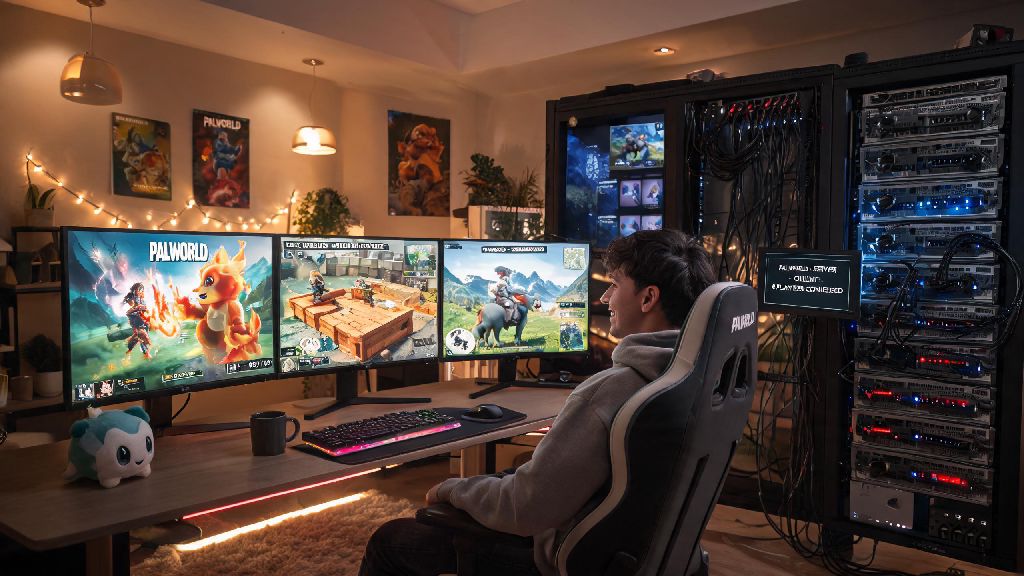
Ever gotten kicked from a public Palworld server mid-boss fight because of random rule changes, or had your base raided by trolls when you logged off for the night? You’re not alone. Thousands of players are looking for how to make a Palworld server to get full control over their play experience, no random interruptions or unfair restrictions. I’ve set up 7 different Palworld servers for my friend group over the last few months, so I’ve worked out all the kinks and common mistakes that trip up new users. This guide skips the overly technical jargon to walk you through exactly what you need to do, whether you’re running the server on your home PC or a third-party hosting service.
Prep Steps Before You Learn How to Make a Palworld Server
First, you need to knock out a few quick prep tasks to avoid headaches later. I skipped these the first time I tried setting up a server, and spent 2 hours troubleshooting a port forwarding issue that could have been avoided in 2 minutes. First, confirm your device meets the minimum system requirements for hosting: 16GB of RAM, a 4-core 3GHz CPU, and Windows 10 or later, or the equivalent for Linux systems. You also want to decide if you want a private or public server before you start, since that changes everything from password settings to rule enforcement. Don’t forget to back up any existing Palworld save files so you don’t lose progress if something goes wrong during setup.
Most consumer internet plans have enough upload speed for small friend groups, but if you plan to open your server to the public, you’ll want to opt for a dedicated hosting service to avoid lag spikes during peak play times. You also don’t need to pay for a premium host right away—many affordable options cost less than $5 a month for 8-10 player slots, which is perfect for most small groups.
Setting Up Your Palworld Server on a Home PC
If you’ve followed the prep steps correctly, learning how to make a Palworld server on your home PC takes less than 30 minutes total. First, download the free Palworld Dedicated Server tool from Steam, which you can access even if you don’t own the game on your account, though you will need a valid Steam login. Once it’s installed, locate the configuration file in the server folder, where you can adjust everything from player limits to spawn rates. Setting a server password is non-negotiable if you only want friends to join, as random users regularly scan for unprotected Palworld servers to join and grief. You can also try adjusting the Pal spawn rate and experience multiplier to match your group's play style—if you only play a few hours a week, cranking the XP up to 2x makes the game way more enjoyable without feeling unbalanced.
You will need to forward port 8211 (the default Palworld server port) on your router to your PC’s local IP address to let outside users connect. If you don’t know how to adjust router settings, don’t guess—you can accidentally expose your home network to security risks if you change the wrong settings. You’ll also need to allow the Palworld server through your Windows Defender or third-party firewall, a step I forgot my first time around that left me confused for an hour why no one could join. The biggest downside of home hosting is that your PC has to stay on anytime someone wants to play, so if you turn your device off overnight, no one will be able to log in while it’s shut down.
Using a Dedicated Hosting Service for Your Palworld Server
Using a dedicated host cuts down on the work of learning how to make a Palworld server by almost 80%, since most of the technical setup is handled for you. This is the best option if you have more than 10 regular players, don’t want to leave your PC on 24/7, or don’t feel comfortable adjusting your router settings. Most Palworld-specific hosts offer one-click installation, so you don’t have to manually edit configuration files if you don’t want to, and you can adjust settings through a simple user dashboard. Look for a host that offers automatic backups, that’s non-negotiable—if your server corrupts a save file after a big update, you can roll back to the previous backup in 2 clicks, no lost progress for your players.
Don’t go for the cheapest host you can find, even if it seems like a good deal. I tried a $2 a month host for my first public server, and it crashed every time our group tried to fight a world boss because the provider oversold their server resources. Most reliable hosts for 10 player slots cost between $4 and $8 a month, which is a small price to pay for no lag and 99% uptime. You can also upgrade your player slots or add more storage as your server grows, so you don’t have to pay for 30 slots right away if you only have 5 friends playing at first.
Post-Setup Tips to Keep Your Palworld Server Running Smoothly
Once your server is live, test joining first yourself to make sure all settings work as expected before you share the IP with anyone else. If you’re running a public server, setting clear rules for public servers and posting them somewhere easy to find (like the server description) cuts down on moderation work later. You can even add simple admin mods that auto-ban players who use exploits or cheat, so you don’t have to monitor the server 24/7.
Restart the server once a week to clear cached data and fix small performance issues, this only takes 2 minutes and prevents random crashes during busy play sessions. If you add mods to your server, make sure to tell all players to install the exact same mods on their local game files before they join, otherwise they’ll get kicked immediately. I forgot to tell my friends about a cosmetic mod I added once, and 3 of them couldn’t join for 20 minutes until we figured out the issue. Ask your regular players for feedback on settings too—if everyone is complaining that Pals are too hard to catch, you can adjust the catch rate multiplier in a few seconds to make the game more fun for everyone. You should also install updates as soon as Palworld pushes them, otherwise players with the latest game version won’t be able to connect to your outdated server.
At the end of the day, learning how to make a Palworld server is one of the best ways to get the most out of the game, whether you want a casual PvE world to build in with your closest friends or a chaotic public PvP server for hundreds of players. You don't need advanced coding skills to get it done, even if you opt for home hosting, and the small amount of time you put into setup pays off for months of uninterrupted play. Don't be afraid to tweak settings as you go, and remember that there's no "right" way to run your server—adjust it to fit what you and your players enjoy most.