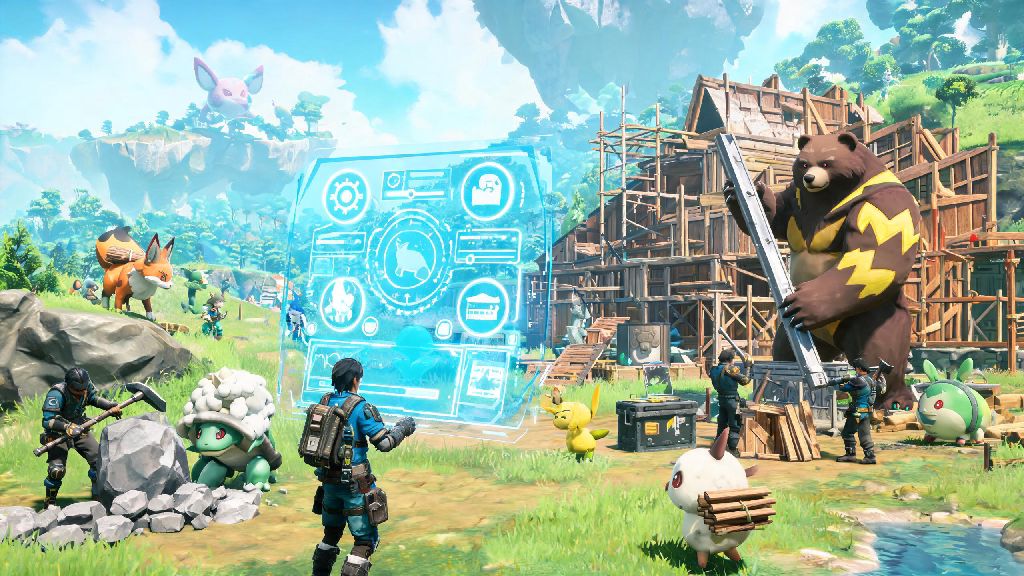
If you’ve spent dozens of hours catching Pals, building bases, and grinding for resources in Palworld, you’ve probably wondered how to install ue4ss palworld to expand what the game can do. UE4SS is the official modding framework for Unreal Engine 4 games like Palworld, and it lets you run everything from quality of life tweaks to total overhauls that change core gameplay. I’ve tested dozens of installation methods over the past few months, and I’ve broken down the safest, most reliable process that works for both Steam and Xbox PC Game Pass versions of the game. You won’t have to mess with confusing file folders or risk corrupting your save files if you follow the steps below.
Prerequisites to Check Before You Install UE4SS for Palworld
Before you start moving files or downloading installers, take 5 minutes to tick off these quick checks to avoid common headaches later. I skipped these steps my first time trying to install the framework, and I ended up having to reinstall Palworld entirely after a broken mod crashed my game permanently. Always back up your Palworld save files before installing any modding tools, even if you think the process is completely safe.
You don’t need any advanced coding knowledge to complete this installation, so don’t get intimidated if you’ve never modded a game before. The entire process takes less than 10 minutes for most users, and you can reverse it completely if you decide you don’t want to use mods later. If you have any pending Windows updates, install those and restart your PC first too, as outdated system files can cause conflicts with UE4SS runtime components.
Step-by-Step UE4SS Installation Process for Palworld
First, head to the official UE4SS release page and download the latest stable build made specifically for Palworld. Don’t download experimental or nightly builds, as these often have untested bugs that can break your game or prevent mods from loading properly. Make sure you download the version of UE4SS built specifically for Palworld, because generic UE4SS releases for other Unreal Engine games won’t work with Palworld’s custom engine configuration.
Next, locate your Palworld root game folder. For Steam users, right click Palworld in your Steam library, select Manage, then click Browse local files to open the folder directly. For Xbox PC Game Pass users, open your Xbox app, right click Palworld in your installed games list, select Manage, go to the Files tab, then click Browse to open the root folder. The root folder is the one that contains the Palworld.exe file, so double check you’re in the right place before moving on.
Extract the entire contents of the UE4SS zip file you downloaded directly into this root folder. When your system asks if you want to overwrite existing files, select Yes, this is normal and required for the framework to work properly. Once the extraction is complete, you’ve finished the core process of how to install ue4ss palworld, and you can start adding your favorite mods right away by dropping mod files into the newly created Mods folder in your Palworld directory.
Launch Palworld to test the installation. You should see a small UE4SS console window pop up alongside the game as it loads. This window will show you mod loading status and any errors that come up, so you don’t have to guess why a mod isn’t working. If the console doesn’t pop up when you launch the game, you extracted the files to the wrong folder, so go back and double check that the UE4SS.dll file is sitting in the same folder as Palworld.exe.
How to Verify Your UE4SS Installation Works Properly
Just seeing the UE4SS console pop up isn’t always a sign that everything is working correctly, so it’s worth running a quick test to make sure mods will load as expected. The easiest way to do this is to download a simple, popular quality of life mod, like the UI tweak mod that shows exact Pal health values in combat, drop it into your Mods folder, and launch the game. If the mod works when you load into your save, your installation is fully functional.
If you run into crashes or mods don’t load, first check the UE4SS console window for error messages. Most errors will clearly state what’s wrong, whether it’s an outdated mod, a missing dependency, or a conflict between two mods you have installed. Delete the Mods folder and re-extract UE4SS if you get repeated launch crashes, this will reset your setup and fix almost all common installation errors without you having to reinstall the entire game.
If you’re still having trouble after verifying all these steps, you can find troubleshooting threads for how to install ue4ss palworld on official Palworld modding communities, where other users share fixes for rare edge cases related to specific PC configurations or operating system versions. I’ve had to use these threads once before when a rare Windows permission issue blocked UE4SS from accessing my game files, and the fix took less than 2 minutes to apply.
For players who like to join public online servers, make sure to test your installation in a single player save first before joining any online lobbies. Some public servers run anti-cheat systems that flag modded clients, even if you’re only running harmless quality of life tweaks, so always check server rules before joining with UE4SS installed.
Common UE4SS Installation Mistakes to Avoid
The biggest mistake I see new modders make is downloading the wrong version of UE4SS. Generic UE4SS builds for other Unreal Engine 4 games will not work with Palworld, and will either crash your game on launch or fail to load entirely. Always make sure the build you download is explicitly marked as compatible with Palworld, and matches your current game version number.
Another common mistake is skipping the save backup step. I’ve seen dozens of players lose 100+ hour save files because a broken mod corrupted their save data, and they had no backup to restore from. Backing up your saves takes less than a minute, and it will save you hours of grind if something goes wrong during installation or mod setup.
For Xbox PC Game Pass users, don’t forget to enable mod support in the Xbox app before you install UE4SS. You can find this option on the Manage page for Palworld in the Xbox app, and if it’s toggled off, the system will block UE4SS from accessing game files even if you extract them to the right folder. This is the most common fix for Game Pass users who can’t get the UE4SS console to pop up on launch.
Finally, don’t install too many mods at once when you first set up UE4SS. Start with 2 or 3 simple mods, test them to make sure they work, then add more one at a time. That way, if you run into a crash or conflict, you can easily identify which mod is causing the problem without having to delete all your installed mods at once.
Once you know how to install ue4ss palworld correctly, you open up a whole new world of custom content that can make your playthrough feel fresh even if you’ve already beaten every boss and collected every Pal. You can add quality of life tweaks that cut down on grind, custom Pal variants, new base building items, and even total conversion mods that turn the game into a completely different experience. Just remember to always back up your saves, use stable releases, and check server rules before using mods online, and you’ll have no issues getting the most out of your modded Palworld experience.